
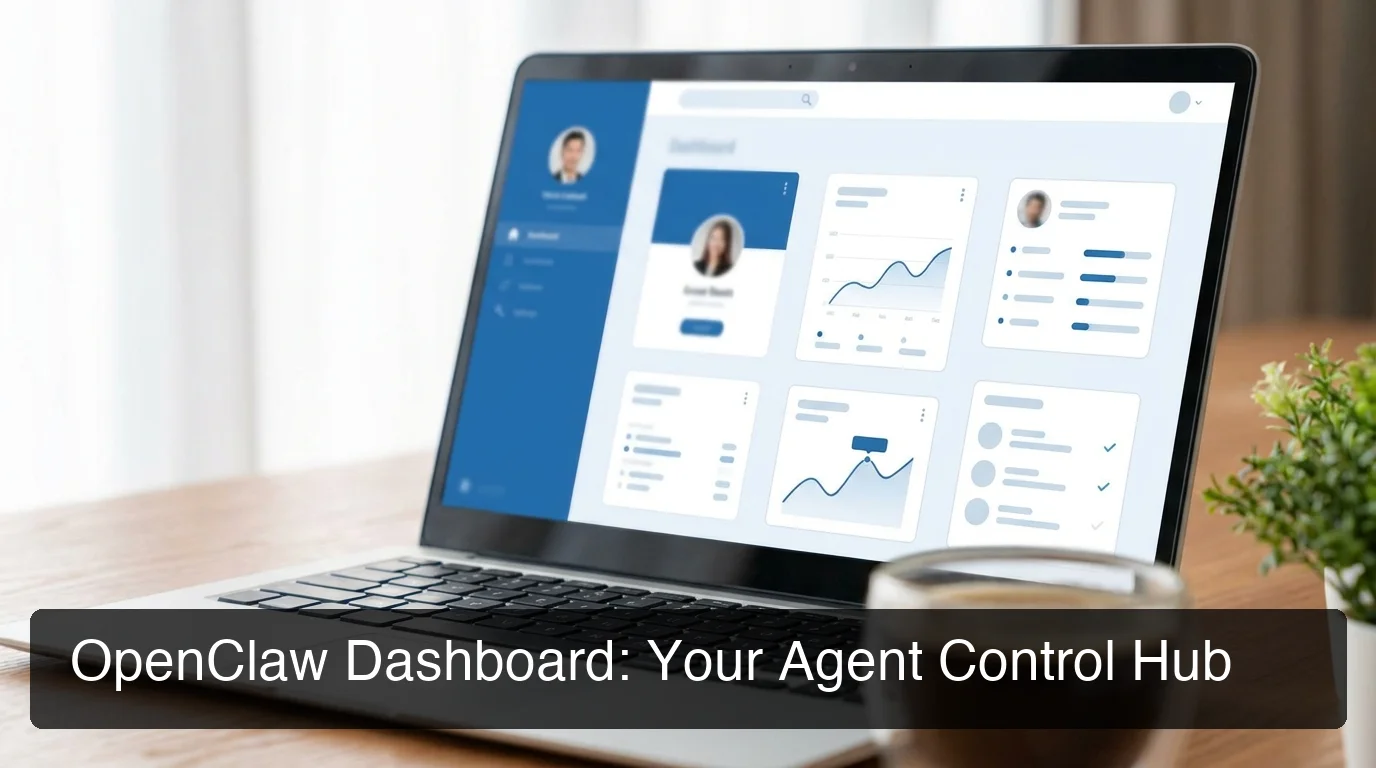
OpenClaw Dashboard: Features & Setup | OpenClawHQ
OpenClaw Dashboard: Your No-Code Control Hub for AI Agent Management
Most people searching "openclaw dashboard" run into a wall: CLI commands, port numbers, and gateway tokens built for developers running their own servers. If you're using OpenClawHQ, your dashboard is a different animal entirely — a clean, browser-based control center that requires zero technical setup.
Key Takeaways
- The OpenClaw Dashboard on OpenClawHQ is your centralized, no-code control hub for managing all AI agents across Slack, Discord, WhatsApp, Signal, and iMessage from one web interface.
- Access the dashboard instantly from any browser — no ports, tokens, or CLI commands required; OpenClawHQ handles all backend infrastructure.
- Real-time analytics show exactly how your agents are performing, with live metrics on messages handled, response times, and user engagement.
- Customize agent behaviors, activate skills, manage team access, and configure white-label branding all from the same dashboard interface.
Contents
- What Is the OpenClaw Dashboard?
- How Do You Access Your OpenClaw Dashboard?
- What Features Are Available in the OpenClaw Dashboard?
- How Do You Create and Manage Agents From the Dashboard?
- How Do You Track Agent Performance in the Dashboard?
- How Do You Customize Your OpenClaw Dashboard?
- How Does the Dashboard Simplify Multi-Platform Agent Management?
- Get Your OpenClaw Instance
- Frequently Asked Questions
What Is the OpenClaw Dashboard?
The OpenClaw Dashboard is a web-based control interface where you manage your AI agents, activate skills, review analytics, and configure platform integrations — all without a command line. On OpenClawHQ, it loads directly in your browser from your managed instance and works from any device, anywhere.
If you've seen the self-hosted OpenClaw gateway dashboard, you know it's technical: find your local port, enter an auth token, navigate CLI documentation. That interface is built for developers who run their own servers.
The OpenClawHQ dashboard is fundamentally different. It's designed for business owners, agencies, and non-technical users who want full control over their AI agents without any server knowledge. You sign in with your email and see everything in one place: your agents, their live status, performance metrics, and every configuration option.
To understand what agents and skills actually are before diving into the dashboard, the full OpenClaw overview covers what the underlying technology does and why businesses use it.
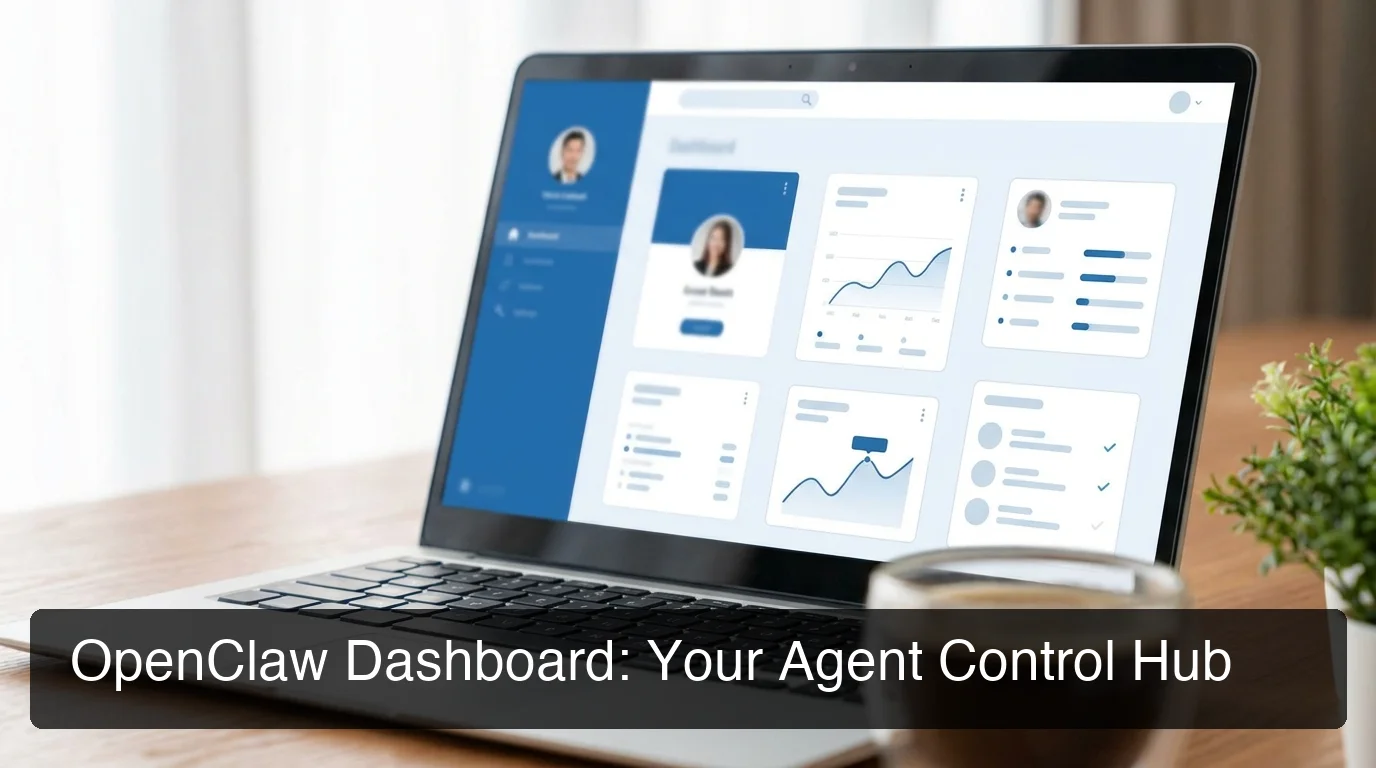 The OpenClawHQ dashboard — your browser-based control center for all AI agents, live metrics, and configuration.
How Do You Access Your OpenClaw Dashboard?
You access the OpenClaw Dashboard by logging into your OpenClawHQ account at openclawhq.io. Your dashboard loads in any browser instantly — no port configuration, auth tokens, or local setup required. OpenClawHQ's managed infrastructure handles everything; you're always one login away from full agent control.
The access process takes seconds:
- Go to openclawhq.io and sign in with your registered email
- Your dashboard loads immediately — agents, connection status, and all controls visible
- No app download required — works on desktop, tablet, or mobile browser
Key insight: Unlike the self-hosted gateway, which requires knowing your local IP address, port number, and an auth token, OpenClawHQ's dashboard is cloud-hosted and accessible from anywhere through a standard browser session. No "pairing required" errors, no token mismatches.
What If I Can't Log In?
Check that you're using the exact email address you registered with at signup. Password resets are handled from the login page. You won't encounter the technical access issues common with self-hosted dashboards — connection problems are handled on OpenClawHQ's side, not yours.
What Features Are Available in the OpenClaw Dashboard?
The OpenClaw Dashboard includes agent management, real-time performance analytics, skill activation, platform integration controls, and team access management. It centralizes every operational control for your AI agents into one interface, replacing what would otherwise require CLI commands and direct server access.
Here's the full feature breakdown:
| Feature | What It Does |
|---|---|
| Agent cards | Live status indicators (active, idle, disconnected) for every agent |
| Skills manager | Browse and activate any of 100+ pre-built skills with one click |
| Platform connections | Connect, disconnect, or reconfigure messaging channels |
| Analytics & metrics | Message volumes, response times, user engagement, error rates |
| Team access | Add team members or clients with role-based permissions |
| White-label branding | Customize dashboard appearance for agency client delivery |
| Instance controls | Restart your agent, apply updates, view instance logs |
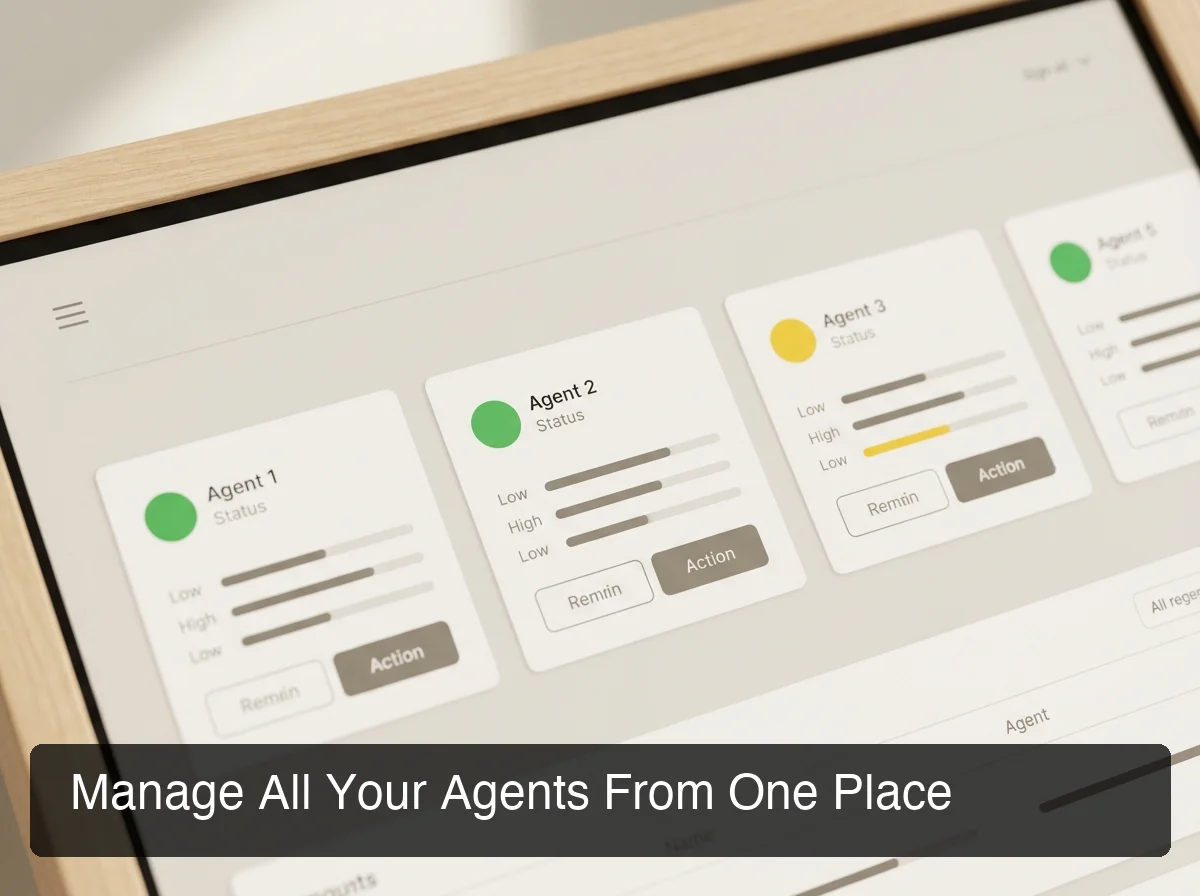 Agent management view — all agents, their live status, and quick action buttons visible in a single panel.
Bottom line: Everything you'd manage through CLI commands — starting agents, configuring channels, activating skills — is available through point-and-click controls. Non-technical users operate the full feature set without ever opening a terminal.
How Do You Create and Manage Agents From the Dashboard?
You create and manage agents from the OpenClaw Dashboard using the Agents panel, where each agent appears as a card with its platform connection, assigned skills, live status, and action controls. Adding a new agent takes minutes: select your platform, complete the guided connection flow, and the agent goes live — no code required.
Creating Your First Agent
From the Agents panel, click "Add Agent" to start:
- Choose your platform — WhatsApp, Telegram, Discord, Slack, Signal, or iMessage
- Authenticate — for WhatsApp, scan a QR code; for Telegram, enter a bot token (guided step-by-step); for Discord and Slack, click Authorize
- Name your agent — e.g., "WhatsApp Customer Support Agent"
- Activate skills — the skills panel opens immediately after connection
The entire process takes 3–7 minutes. OpenClaw skills explained covers how to activate and configure each skill capability in detail — skills are the building blocks that give your agents their actual functionality.
Managing Existing Agents
Each agent card shows live connection status — green for active, yellow for idle, red for disconnected. The action menu on each card lets you restart the agent, change skill configuration, switch platforms, or archive the agent entirely.
By the numbers: OpenClawHQ runs each agent on isolated, dedicated infrastructure. A connection issue on one agent doesn't affect your others — the dashboard reflects each agent's status independently.
For teams managing multiple agent deployments, OpenClaw Mission Control adds a higher-level management layer on top of the dashboard — useful for task queuing and coordinating across multiple instances.
How Do You Track Agent Performance in the Dashboard?
The OpenClaw Dashboard analytics panel tracks message volumes, average response times, active user counts, skill usage, and error events — per agent and in aggregate. Time-range filters let you view daily, weekly, or monthly data without any external analytics configuration.
What Metrics Are Available?
The analytics panel covers the metrics that matter for operational decisions:
- Messages handled — total conversations processed per agent over time
- Average response time — how quickly your agent replies to incoming messages
- Active users — unique users who interacted with your agent in a given period
- Skill usage — which automations your agents run most frequently
- Error rate — failed responses and connection drops with timestamps for troubleshooting
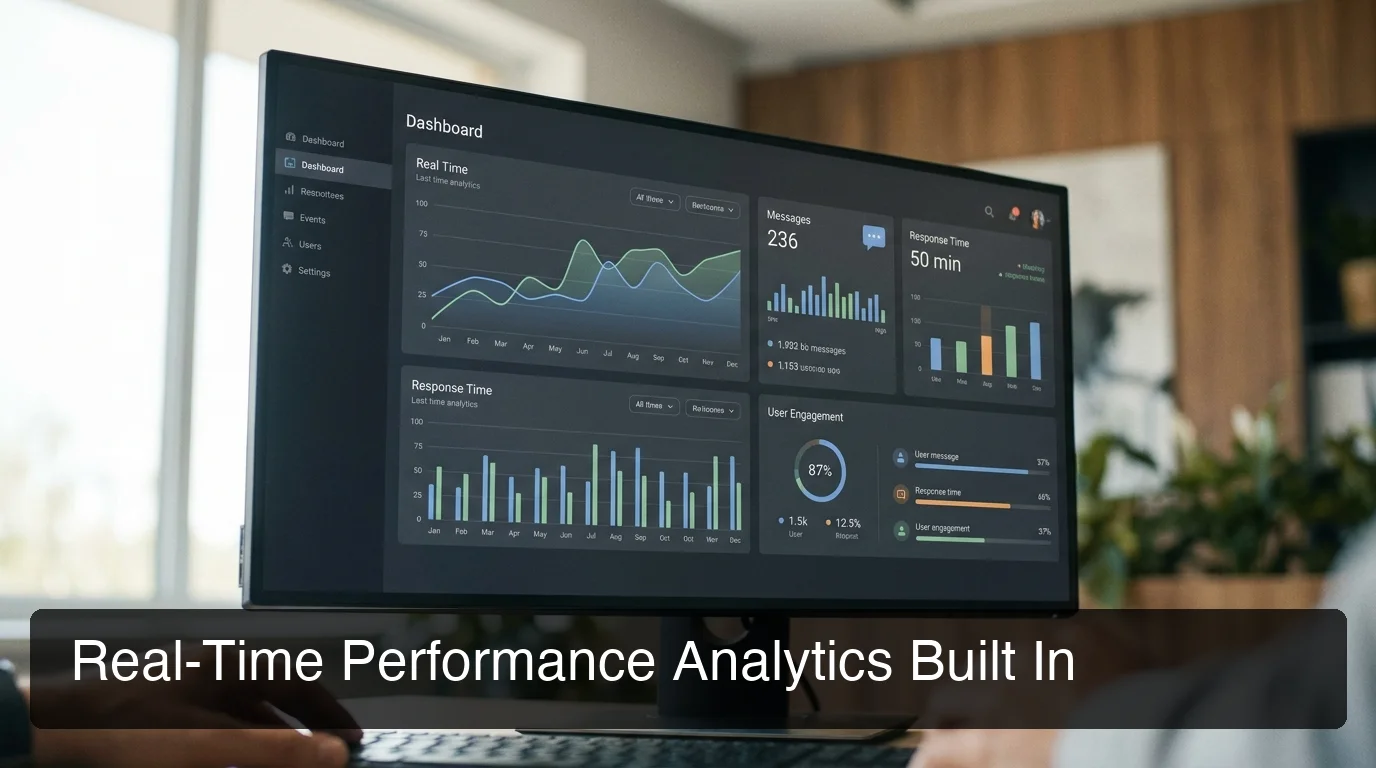 Real-time performance analytics — message volumes, response times, and engagement trends across all agents.
Reading Your Agent Data
Response time spikes usually indicate a skill is taking longer than expected — the skill usage breakdown will pinpoint which one. Message volume drops often signal a platform connection issue, which the agent status card will also flag in real-time.
Key insight: Self-hosted setups require you to configure your own logging and metrics stack to get this visibility. OpenClawHQ ships with analytics built in — zero configuration, available from day one.
How Do You Customize Your OpenClaw Dashboard?
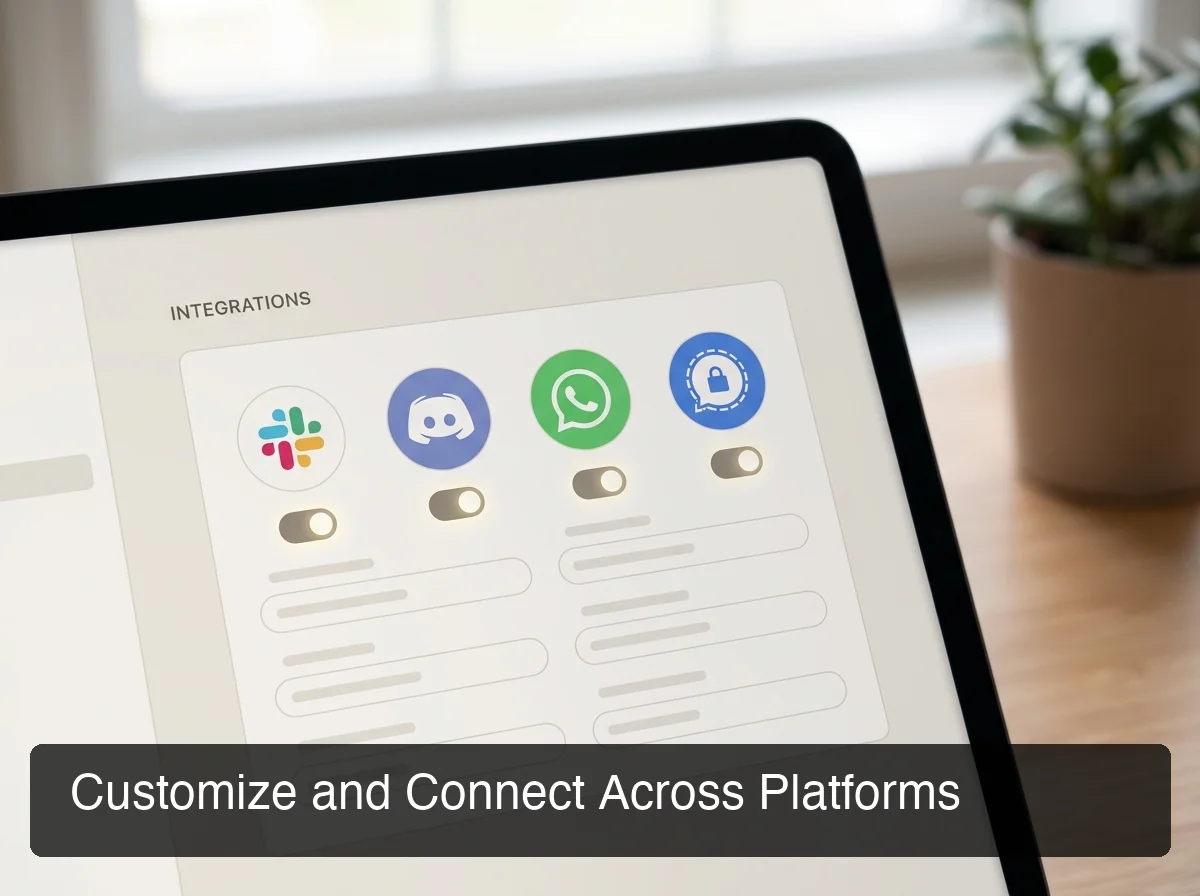 Platform integration controls — toggle connections and configure settings for each messaging channel from one panel.
You customize the OpenClaw Dashboard by configuring agent behaviors, adjusting skill settings, managing platform-specific parameters, and — for agencies — applying white-label branding that replaces the OpenClawHQ interface with your own brand identity. All configuration is point-and-click; no code or config files required.
Agent Behavior and Skill Configuration
Each agent has a configuration panel for:
- Setting the agent's persona and response tone
- Defining which skills are active and in what priority order
- Configuring platform-specific settings (WhatsApp business profile, Slack workspace restrictions, channel-specific behavior)
- Setting availability windows or working hours for your agent
White-Label Options for Agencies
Agency users can apply white-label settings to replace OpenClawHQ branding with their own logo, color scheme, and custom domain. Clients log into the dashboard and see your agency's brand — a fully managed AI service experience delivered under your name. This makes it straightforward to white-label the dashboard for clients and charge a service fee on top.
Team Access and Permissions
Add team members or clients with role-based access:
- Admin — full control including billing and instance settings
- Operator — agent management and analytics access, no billing
- Viewer — read-only analytics (useful for client reporting without giving edit access)
Bottom line: The customization depth here matches what you'd configure manually via OpenClaw's CLI — without writing a single configuration file. White-labeling and role-based access are particularly valuable for agencies building managed AI services on top of OpenClaw.
How Does the Dashboard Simplify Multi-Platform Agent Management?
The OpenClaw Dashboard centralizes control for agents running across multiple messaging platforms. Instead of managing WhatsApp, Slack, Discord, and Signal agents through separate interfaces with no shared analytics, one login gives you live status, unified metrics, and configuration access for every agent on every platform.
One Interface, Every Platform
Without a central dashboard, running agents on multiple platforms means switching between four tools — no shared analytics, no way to compare performance across channels, no unified way to restart or reconfigure.
With OpenClawHQ, every agent appears in the same interface regardless of platform. You can monitor your Signal agent's performance right alongside your WhatsApp and Discord agents, comparing metrics in the same analytics view. Supported platforms include WhatsApp, Telegram, Discord, Slack, iMessage, Signal, and more.
You can connect multiple channels to the same agent or run separate dedicated agents per platform — both configurations are managed identically through the dashboard.
Scaling From One Agent to Many
The dashboard scales linearly. Whether you're running one agent for your own business or managing dozens of instances for agency clients, the interface handles it the same way. Agent cards, analytics panels, and configuration options work identically at any scale.
Key insight: Self-hosted management requires a separate SSH session per instance, per-agent log files to tail, and manual config syncing across deployments. OpenClawHQ's dashboard is a single pane of glass — all agents, all platforms, all metrics in one place.
Get Your OpenClaw Instance
The OpenClaw Dashboard gives you full operational control over your AI agents — without the technical complexity of self-hosting. If you want this control center working today, not after a weekend of server configuration, OpenClawHQ gets your private instance running in minutes.
Start for $49/month — no server, no coding, no separate API keys required.
Frequently Asked Questions
What is the OpenClaw Dashboard on OpenClawHQ?
The OpenClaw Dashboard on OpenClawHQ is your web-based control center for managing all AI agents. It lets you create agents, activate skills, review performance analytics, configure platform integrations, and manage team access — all from a browser, with no command line or technical knowledge required.
How do I access the OpenClaw Dashboard?
Log into your account at openclawhq.io and your dashboard loads immediately. No port number, auth token, or local IP address needed — OpenClawHQ manages all backend infrastructure, so your dashboard is always available through a standard browser login from any device.
Can I manage multiple agents from one OpenClaw Dashboard?
Yes. The OpenClawHQ dashboard supports multiple agents, each displayed as a separate card with its own status, analytics, and configuration panel. You can run agents on different platforms — WhatsApp, Discord, Slack, Signal — and monitor all of them from the same dashboard view with unified analytics.
What analytics does the OpenClaw Dashboard show?
The analytics panel tracks messages handled, average response times, active users, skill usage frequency, and error events per agent and in aggregate. You can filter by daily, weekly, or monthly ranges. Analytics come built in with every OpenClawHQ subscription — no external setup required.
What is OpenClawHQ?
OpenClawHQ is a fully managed hosting service for OpenClaw — the viral open-source AI agent. It gives non-technical users and business owners their own private OpenClaw instance, fully configured and running in minutes, with unlimited usage for $49/month flat. No server setup, no coding, and no separate token fees required.
Can I white-label the OpenClaw Dashboard for clients?
Yes. OpenClawHQ's white-label settings let you replace the dashboard branding with your agency's logo and color scheme. Clients access the dashboard under your brand identity, making it straightforward to offer managed AI agent services to business clients under your own name.
How is OpenClawHQ's dashboard different from the self-hosted OpenClaw gateway dashboard?
The self-hosted OpenClaw gateway dashboard requires running a local server, navigating to a specific port and IP address, and entering an auth token generated by the CLI. OpenClawHQ's dashboard is browser-based, cloud-hosted, and accessible through a standard login — no local setup, no ports, no tokens.