
The OpenClaw App Explained: Dashboard, Setup & Features
The OpenClaw App Explained: Dashboard, Setup, and Features
You don't need a terminal window open to run an AI agent anymore. If you've searched "openclaw app" hoping for a straightforward answer instead of a GitHub README, this is that answer — what the app actually is, what it looks like once you're inside it, and how a non-technical business owner gets from sign-up to a working AI employee.
Key Takeaways
- The "OpenClaw app" can mean two things: the official native companion apps (iOS, Android, macOS) that pair with a self-hosted Gateway, or the fully managed web dashboard OpenClawHQ provides — no Gateway required.
- OpenClawHQ's web dashboard lets you activate skills, connect messaging channels, and monitor your AI agent from a browser — no command line, ever.
- Setup through OpenClawHQ takes 3–7 minutes depending on which messaging platform you connect first.
- You control OpenClaw from your phone through WhatsApp, Telegram, Discord, or Slack — not by installing a separate native app.
- Multiple team members can share one OpenClaw instance through the same dashboard login or the connected messaging channel.
Contents
- What Is the OpenClaw App, Exactly?
- How Do You Access and Use the OpenClaw App?
- What Features Does the OpenClaw Web Dashboard Offer?
- How Do You Connect Your Messaging Apps to OpenClaw?
- Is There a Native Mobile App for OpenClaw?
- How Long Does It Take to Set Up the OpenClaw App?
- Can Multiple Team Members Share One OpenClaw Instance?
- OpenClaw for Your Business — No Server, No Code, Just Results
 The whole point of the OpenClaw app dashboard is that you never have to touch a terminal to reach it.
What Is the OpenClaw App, Exactly?
The OpenClaw app refers to how you access and control your OpenClaw agent — either through the official native apps for iOS, Android, and macOS, or through a browser-based web dashboard that connects to your messaging platforms. Both routes control the same underlying agent. The difference is what sits behind them: the native apps expect you to already have a self-hosted "Gateway" running somewhere, while a managed dashboard like OpenClawHQ's handles that layer for you.
If you're still catching up on the basics, our full explainer on what OpenClaw actually is covers the agent itself — what it does, why it went viral, and where the name came from. This article is specifically about the interface: what you click, tap, and type once you've decided to use it.
Most people who search "openclaw app" have already read the GitHub page and hit a wall. They want to know what using it actually feels like day to day, not how to compile it.
How Do You Access and Use the OpenClaw App?
You access the OpenClaw app by signing up for a managed instance, connecting a messaging platform, and then talking to your agent directly inside that app — no separate download required for daily use. With OpenClawHQ, the entire process runs through your browser.
Here's the actual flow:
- Sign up at openclawhq.io with an email and password
- Choose your messaging channel — WhatsApp, Telegram, Discord, Slack, or another supported platform
- Follow the guided setup wizard (scan a QR code for WhatsApp, authorize a bot token for Telegram, click Authorize for Discord or Slack)
- Send your agent a message in that app to confirm it's live
- Open the web dashboard whenever you want to activate skills or check activity
There's no npm install, no CLI onboarding wizard, and no Node.js version to manage. That's the entire point of the managed layer — see how using OpenClaw without coding works in more depth if this is your main hesitation.
What Features Does the OpenClaw Web Dashboard Offer?
The OpenClaw web dashboard has three core panels: skills activation, channel configuration, and a monitoring interface that shows what your agent has done. Everything a non-technical user needs on day one lives inside these three screens — you don't need to dig through settings menus to find them.
The skills activation panel lists every pre-built automation your instance can run — web search, email, calendar management, API calls, document summarization — as individual toggles. Flip one on and it's available the next time you message your agent; no restart, no redeploy.
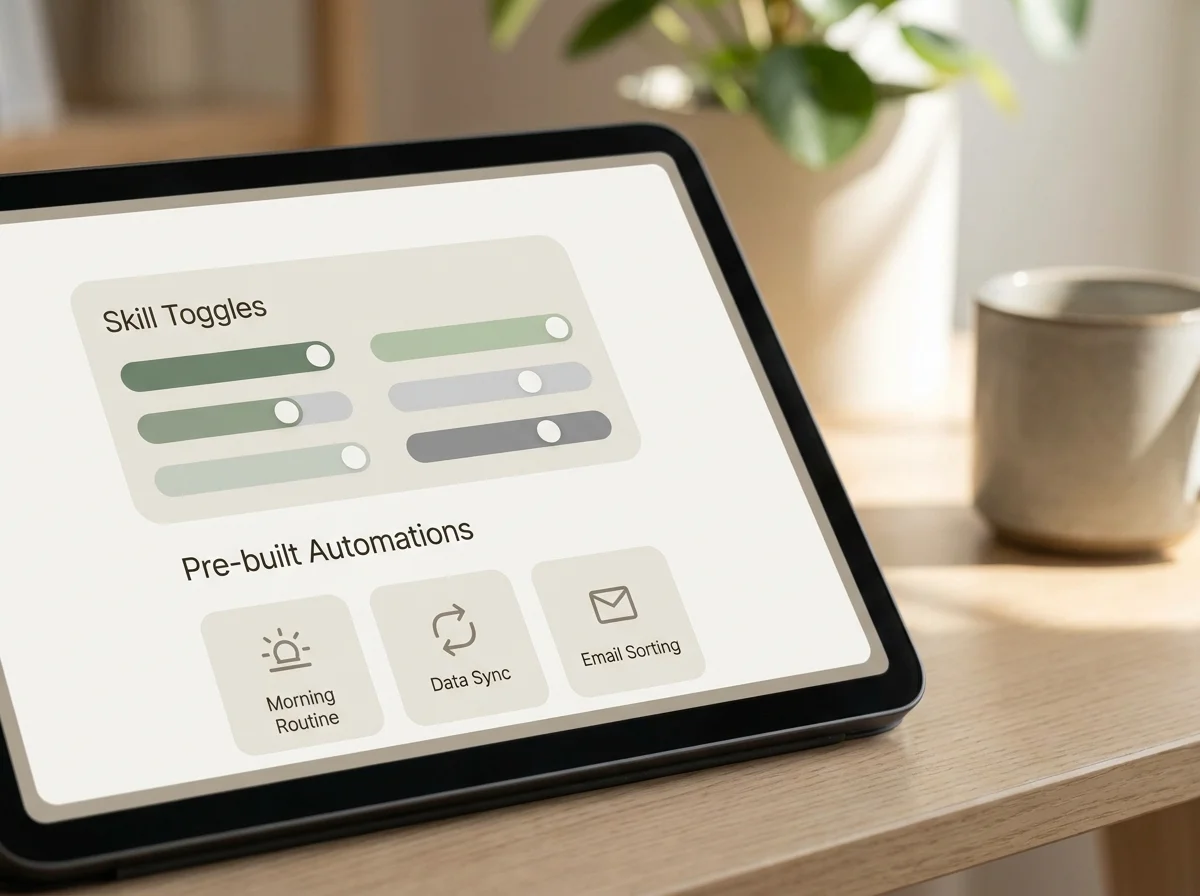 Turning a skill on is a single click, not a config file.
The configuration panel is where you manage your connected channel, swap the LLM behavior for your instance, and set basic preferences like response tone. The monitoring interface logs recent conversations and skill runs so you can see exactly what your agent did and when — useful the first time a customer asks "did it actually send that email?"
Worth knowing: These three panels sit inside what OpenClaw itself calls the Hub — the control center for skills and settings that OpenClawHQ exposes through its own simplified dashboard.
For a deeper look at what those skills can actually accomplish once activated, see the full range of what OpenClaw can do.
How Do You Connect Your Messaging Apps to OpenClaw?
You connect a messaging app to OpenClaw during the initial setup wizard by authenticating that specific platform — a QR scan for WhatsApp, a bot token for Telegram, or an OAuth authorize click for Discord and Slack. OpenClawHQ maintains the connection afterward, including automatic reconnection if a channel drops.
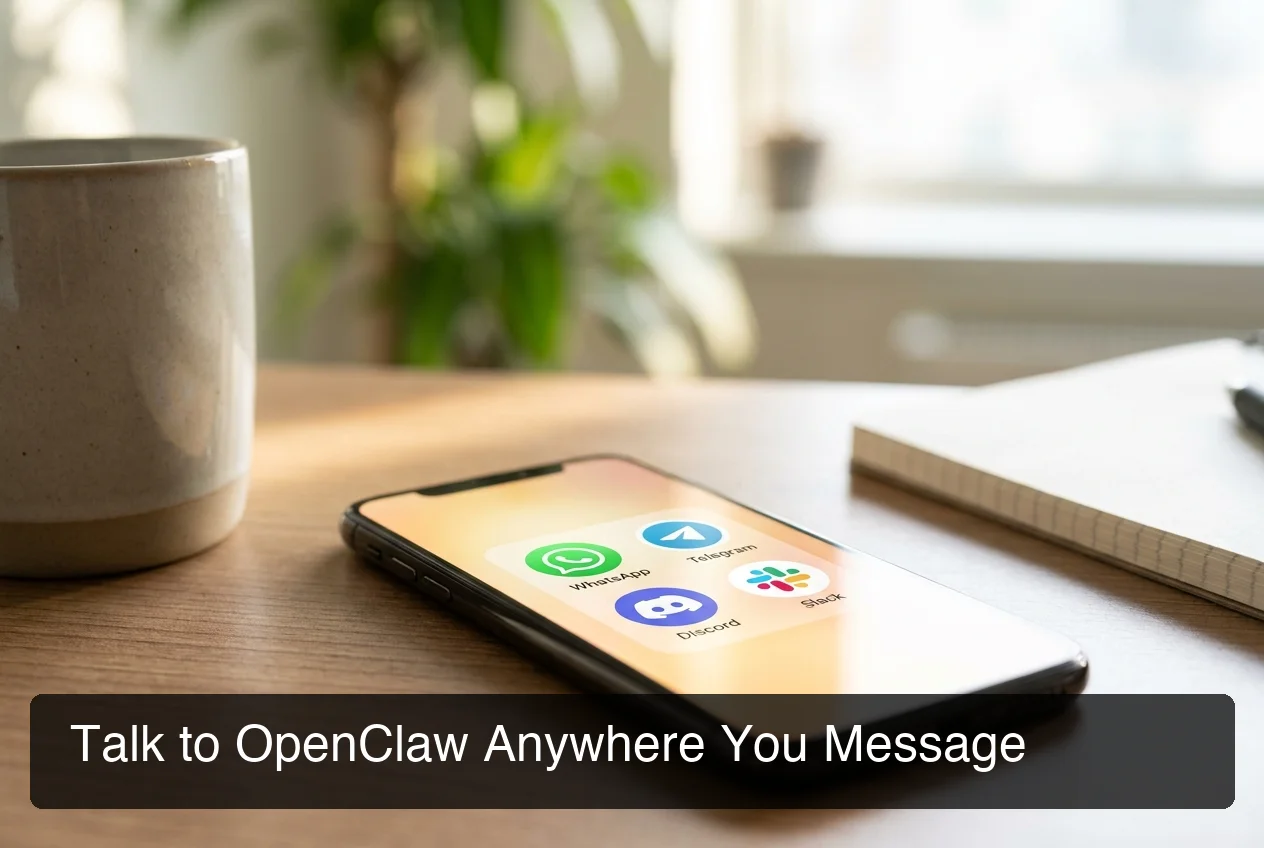
Supported platforms go well beyond the big four:
- WhatsApp, Telegram, Discord, Slack
- iMessage, Signal, BlueBubbles, Microsoft Teams
- Matrix, Feishu, LINE, Mattermost, WeChat, Zalo, and more
You can connect additional channels later from the same dashboard — most customers start with one platform, confirm it works, then add a second once the team trusts it.
Is There a Native Mobile App for OpenClaw?
Yes — the official OpenClaw project publishes native apps for iOS, Android, and macOS, but they're designed to pair with a self-hosted Gateway node, which is exactly the server setup OpenClawHQ removes. If you're on a managed instance, you don't install or pair anything; your phone access comes through the messaging app you already have installed.
That distinction matters more than it sounds. The official apps are a genuine improvement for people already running their own Gateway, but pairing one still means you've deployed and maintained the underlying infrastructure yourself. OpenClawHQ customers skip that step entirely — your openclaw mobile access is just WhatsApp, Telegram, or whichever channel you connected, opened like any other conversation.
The web dashboard is also fully usable from a phone browser, so checking skill activity or toggling an automation doesn't require being at a desk. Access your AI agent from the OpenClaw interface on whatever screen is in front of you.
How Long Does It Take to Set Up the OpenClaw App?
Setup through OpenClawHQ takes 3 to 7 minutes depending on which messaging platform you connect first — WhatsApp and Telegram are typically the fastest. Discord and Slack take slightly longer because of the OAuth authorization step, though it's still a handful of clicks rather than a configuration file.
Compare that to self-hosting: installing Node.js 24, running the CLI onboarding wizard, authenticating each channel manually, and setting up a process that survives a server reboot. Most non-technical users who attempt that route stall out inside the first fifteen minutes — which is the entire reason a managed setup exists.
Can Multiple Team Members Share One OpenClaw Instance?
Yes — team members can access the same OpenClaw instance either through the shared dashboard login or directly through the connected messaging channel, since the agent responds to any message sent to that number or bot. There's no per-seat licensing complexity to configure.
For most small teams this looks like one shared WhatsApp Business number or Slack workspace connection, with the dashboard login shared among whoever manages skills and settings. When you first log into your OpenClaw instance, the dashboard doesn't distinguish between "owner" and "employee" views yet — it's a single shared control panel, which keeps things simple for the size of business OpenClawHQ is built for.
OpenClaw for Your Business — No Server, No Code, Just Results
Picture a real estate agent whose phone buzzes at 11pm with a WhatsApp message from a lead asking about a listing. Instead of that message sitting unanswered until morning, OpenClaw replies immediately, answers the basic question, and books a callback for the next available slot. The agent never knows — or cares — whether a person or an AI handled the first reply.

That's the practical version of what "no server, no code" buys a business owner: the automation runs whether or not anyone's watching the dashboard.
OpenClawHQ vs. Self-Hosting the OpenClaw App
| Option | Setup Required | Monthly Cost | Who It's For |
|---|---|---|---|
| OpenClawHQ | None — guided web wizard | $49 flat, unlimited | Non-technical business owners |
| KiloClaw | Some — hosting configured, gateway managed | $9 + variable token fees | Users comfortable tracking usage |
| xCloud / MyClaw | Moderate — bring your own API keys | $16 + your own API bills | Technical users with existing API accounts |
| Self-hosted (VPS) | Full — Node.js, CLI, daemon, channels | $4–$10 VPS + your API bills | Developers who want full control |
For a full breakdown of how OpenClawHQ stacks up feature by feature, read our complete OpenClawHQ review.
Get Started with OpenClawHQ
If the dashboard and setup steps above sound manageable, that's because they're built to be — no server, no API key, no command line at any point. Get your OpenClaw instance running today for $49/month flat, unlimited usage included.
Frequently Asked Questions
What is OpenClawHQ?
OpenClawHQ is a fully managed hosting service for OpenClaw. It sets you up with your own private, always-on instance through a guided web dashboard — no server, no coding, and no separate charges based on how much you use it, for a flat $49 a month.
Do I need to know how to code to use the OpenClaw app?
No. The entire dashboard is built for non-technical users — skills are toggled with a click, channels are connected through a wizard, and there's no command line at any point in the process. If you can use a website, you can use the OpenClaw app through OpenClawHQ.
How do I set up OpenClaw on WhatsApp specifically?
Sign up, pick WhatsApp as your channel, and scan a QR code inside the web dashboard — that pairs your number to your instance in a few minutes. From there, messages sent to that number reach your agent directly, with no additional configuration needed.
Can I switch which messaging app I use later?
Yes. You can add or switch connected channels from the dashboard at any point after your initial setup. Most customers start with one platform, confirm it works for their workflow, then connect a second later.
Is my data private inside the OpenClaw app dashboard?
Yes. Each OpenClawHQ customer runs on an isolated instance, so conversations and configurations aren't shared with other customers. Security updates and infrastructure maintenance are handled automatically on the backend.
What happens if I lose access to my phone or messaging account?
Your OpenClaw instance and its configuration live in the OpenClawHQ dashboard, separate from any single device. You can reconnect a channel or update credentials from the dashboard using your account login, without losing your skill settings or history.